
 Chrome extension · Free
Capture it. Mark it up. Send it.
Screenshot a whole page, a region or a single element, or record your screen with your camera and mic. Add arrows, boxes, steps and blur, then save, copy or share a link in seconds.
Coming soon to the Chrome Web Store.
From page to point in seconds
Capture
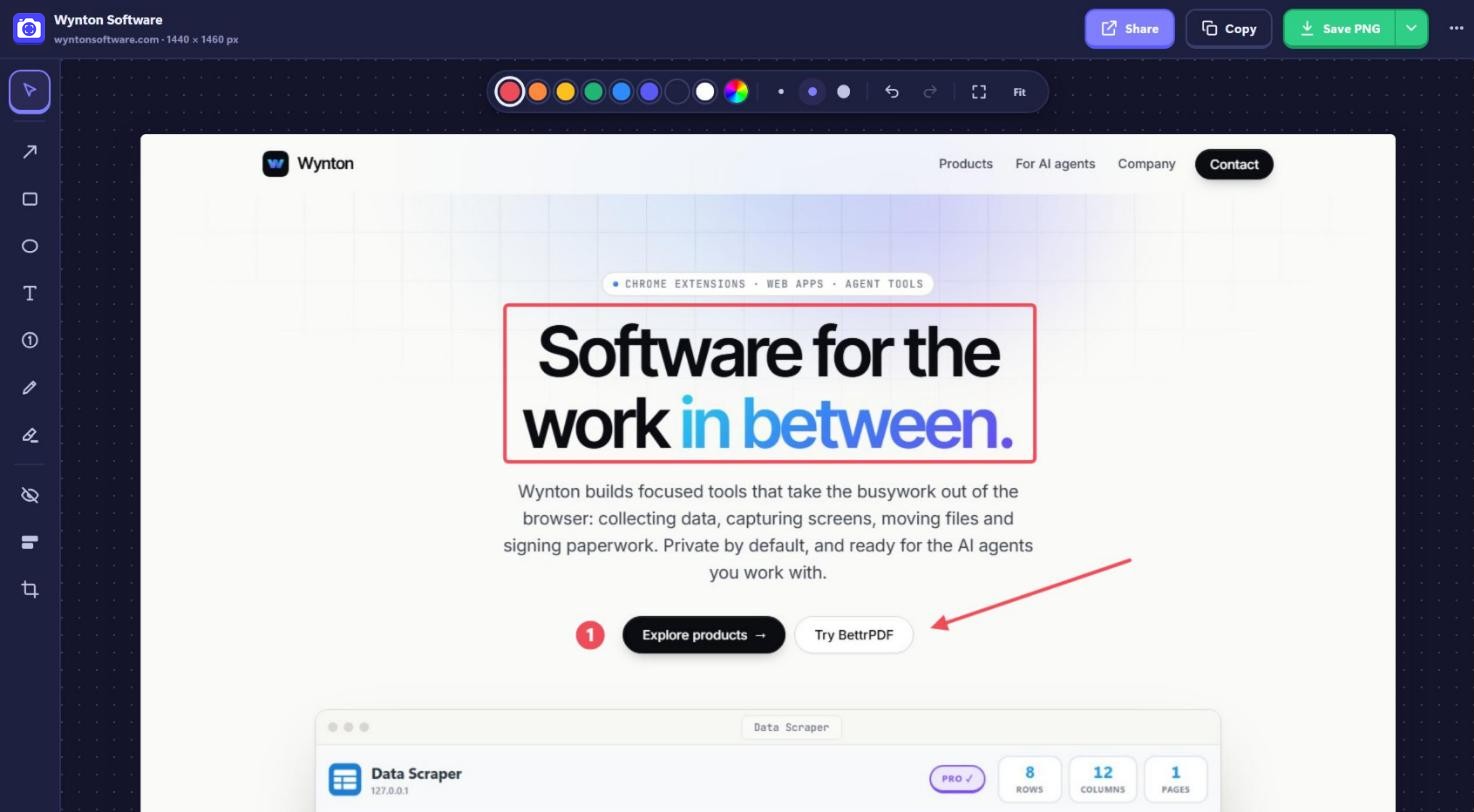
Alt+Shift+F for the whole page, Alt+Shift+S for an area, or pick from the popup. Full pages scroll and stitch for you.
Mark it up
Boxes, arrows, text, numbered steps, highlights and blur. Select any mark later to move, resize or recolour it.
Send it
Save as PNG, JPEG or PDF, copy to paste anywhere, or create a private link that unfurls in Slack and Teams.
Every capture. Every mark.
True full-page capture
Scrolls and stitches the whole page, hides sticky headers after the first frame, and loads lazy images first. Inner scrolling panels like Gmail work too.
Pick an element
Click one card, chart or image to capture exactly that, nothing else.
Screen recording
Record a screen, window or tab, or just your camera, with your mic and a round camera bubble. Free recordings run up to 10 minutes.
Mark-up that stays editable
Every arrow, box, label and step can be selected, moved, resized and recoloured. Steps renumber themselves.
Blur and black out
Hide emails, names and numbers before you share, with blur, pixelate or a solid bar.
Private share links
One click uploads the image and copies a link that's long, random and unlisted. Delete it any time.
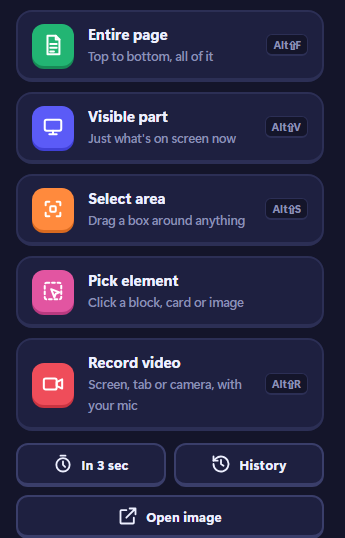
Every capture mode, one click away.
The popup puts each way to capture in reach, with its shortcut beside it. Delay a capture for hover menus, reopen anything from History, or open any image to mark it up.
- Entire page, visible part, area or element
- Record video with camera and mic
- Countdown capture for menus and tooltips
- Right-click any page for quick captures
Let your agents see what you see.
SnapShot Pro includes a Model Context Protocol server, so Claude, Cursor and other agents can take screenshots through your own Chrome, with your logins, IP and hardware. It's off until you turn it on, protected by a token, and always visible to you. Agent access is part of Pro, and the free trial counts.
snapshot_statusIs Chrome connected, and where are files saved?list_tabsOpen tabs with their titles, URLs and whether they can be captured.captureA full page, the visible area or one element, by URL or tab.
# Add SnapShot Pro to Claude Code
claude mcp add snapshot-pro \
  -e SNAPSHOT_TOKEN=<token from Settings> \
  -- node "…/snapshot-pro/agent/server.mjs"

# Chrome connects within 30 seconds.
# The dot in Settings → AI agents turns green.
Free to use. Pro when it's your job.
Free
$0
Everything for everyday captures.
- Every capture mode and every mark-up tool
- Save as PNG or JPEG, copy and print
- Screen recordings up to 10 minutes
- Share links that last 7 days
- Your recent captures in History
Pro
$29 / year, or $49 once
7-day free trial.
- Recordings with no time limit
- PDF export: A4, Letter or one long page
- Auto-save or auto-copy after every capture
- Custom file names and unlimited, searchable history
- Share links that never expire
- AI agents capture through your Chrome
Pro goes on sale soon.
Questions, answered.
Do my screenshots get uploaded?
No, unless you choose Share a link. Captures and history are stored in your browser. Only an image you share is uploaded, so the link works. See the privacy policy.
Who can see a shared link?
Anyone you give the link to. Links are long and random, so they can't be guessed, and they're never listed or searchable. You can delete a link at any time.
What are the keyboard shortcuts?
Alt+Shift+V captures the visible area, Alt+Shift+F the full page, Alt+Shift+S a selection and Alt+Shift+R starts or stops a recording. In the editor, press ? for the full list.
How do I get help?
Email support@wyntonsoftware.com.
SnapShot Pro is coming to the Chrome Web Store.
Want to know the moment it's live, or try it early? Drop us a line.
Request early access →